Best AI Tools & Easy Methods to Online Remove Fence from Photo
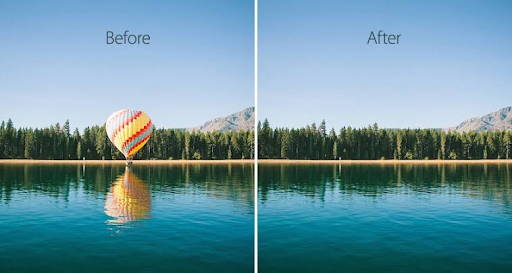
A fence can be a great way to protect a property but it can also block an otherwise great photograph. Modern AI editors can make remove fence from photo tasks much more effortless whether you are editing real estate images, landscape photography, family pictures, or academic project visuals. AI-powered tools can evaluate the surrounding pixels and reconstruct parts of the background, rather than manually reconstructing each section behind the fence.
Which is best depends on the size and position of the fence and how complex the scene behind it is. It’s often easier to edit a simple wooden fence against grass rather than a detailed metal fence against a building, a person or a textured landscape.
1. AI Object Removal – Delete Fence from Photo
In most cases, AI-based object removal tools are the fastest way to make this type of edit. They work by letting you paint over the unwanted fence and then generating replacement pixels based on the surrounding image.
Adobe Express for Fence Removal
For example, Adobe Express has a generative AI Remove object tool. Users can select an image, select the removal tool, brush over the unwanted area and generate alternative results. Adobe recommends you select some of the surrounding area for better results.
This workflow is easier for beginners than using advanced layers, masks, and cloning techniques.
2. Remove a Fence from an Image Using Photoroom
If you want to remove fence from photo without complicated editing software, Photoroom is another good choice. Retouch allows you to paint over an unwanted object, then AI redraws the selected area to blend with the background. You can access the tool via a web app and mobile apps.
This method is particularly effective for fences covering reasonably predictable areas such as grass, sky, walls, or simple ground surfaces. If the fence crosses several different textures, you can get a more convincing result by making smaller selections.
3. Delete a Fence Quickly with Google Photos
If the image is already stored on a smartphone, Google Photos can be a convenient editing option. The object removal workflow lets users draw circles or brush unwanted elements and then tap the Erase function. Magic Eraser is purpose-built to take out distractions from photos on supported devices.
This makes Google Photos handy for casual edits where speed is more important than fine-tuned control. But for professional property photos, it is a good idea to check the edited area closely before publishing the picture.
4. Choose the Fence Area Wisely to Get Better Results
One of the most important parts in learning how to remove fence from photo is to make an accurate selection. Don’t brush over a large area of the image right away. Instead, work through the fence in smaller areas, especially near posts, shadows, plants, people, or architectural details.
Smaller selections give generative tools a more refined idea of what needs to go and what needs to stay from an editing point of view. If the first result has repeating textures, blurred edges, or unnatural lines, undo it and select more precisely.
5. Select the Right Method for Complex Backgrounds
Not all fence removals require the same technique. An empty blue sky can often be quickly cleared from a fence, but a fence over trees, windows, bricks, or people will take more careful retouching.
AI Tools for Simple Backgrounds
For simple backgrounds, AI erasers are typically the quickest option. For complex photos, you could try a combination of AI removal and manual cloning, healing, masking, or layer-based editing for more control. This hybrid approach is especially useful when the AI-generated background seems artificial.
6. After the Fence Is Removed, Check the Image
Once you remove fence from photo, zoom in to the edited area and check edges, shadows, repeated patterns, and perspective. Artificial intelligence is able to create results that look real, but it can also add subtle artifacts that are hard to see when viewing the whole photo.
A good final image should keep the original lighting, perspective, texture, and natural depth of the scene. It is also important to export a high-quality version when the image is going to be used for a website, presentation, portfolio, or print project.
Final Thoughts
You don’t need to be a Photoshop expert to learn how to remove fence from photo online. Tools like Adobe Express, Photoroom, and Google Photos are available to help you easily remove pesky objects and fill in the background around them.
To get the best results, make accurate selections, work in small chunks, and always check the finished image at full resolution. Artificial intelligence can save you a lot of time editing, but it’s still important to do a careful review to ensure that your photo looks natural.
For More Information Visit: Rare Magazine